Barvosklad
We built Barvosklad to choose colours for our own products. It lets us work on a whole palette, try it in an interface and check where colours become hard to read or tell apart, before taking them into the code.
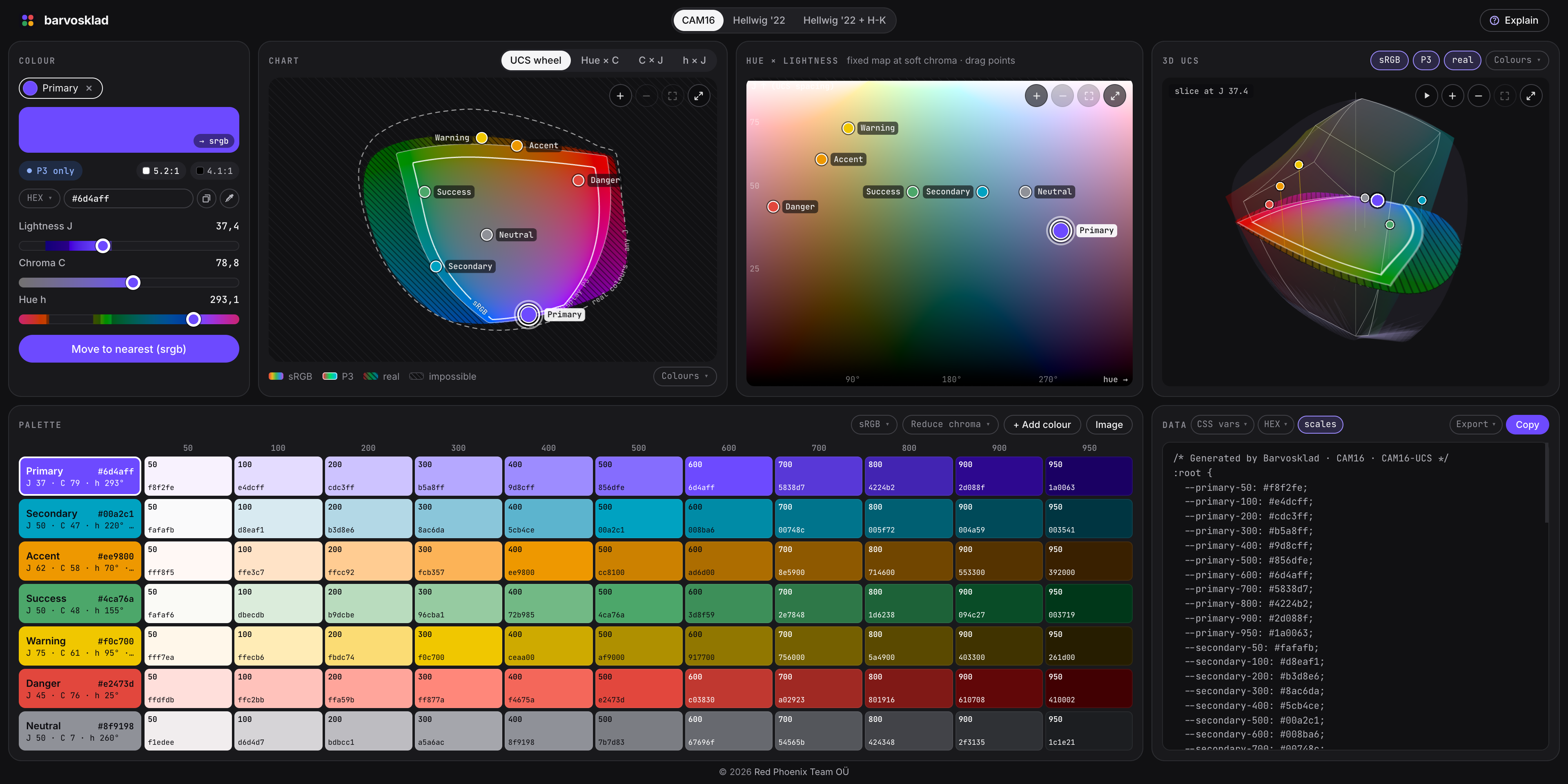
Choosing colours for our own products
We built Barvosklad for a job we do on our own products: choosing colours that work well together. A palette has to hold up across a whole interface. The main colour needs lighter shades for backgrounds, darker ones for text, and room for warnings and errors to stand out.
The numbers in a colour picker only tell part of that story. Pure blue and pure yellow both have 50% lightness in HSL, yet yellow looks much lighter. When we’re trying to give several product colours a similar weight, matching those numbers doesn’t get us very far.
We wrote the application in ClojureScript, using Reagent for the React interface and shadow-cljs to compile it for the browser.
Why these colour spaces?
We chose CAM16 as our starting point. It is a colour appearance model, which means it predicts how a colour looks under a given set of viewing conditions. Its coordinates describe lightness, colourfulness and hue. That gives us controls closer to the decisions we’re making, such as keeping a blue and a green similarly light without making either one grey.
CAM16-UCS takes those predictions into a more uniform colour space. The aim is for similar distances in the space to represent similar differences to the eye. We use that geometry in the charts and when building shades, so the spacing has a perceptual meaning. It is an approximation, but a useful one when deciding whether a step between two colours feels too large.
We also included Hellwig 2022, which revises CAM16’s colourfulness and chroma calculations. Switching models gives us another way to judge how strong the colours look relative to one another. We can compare the same palette through both models and see where their predictions differ.
The third option, Hellwig + H-K, accounts for the Helmholtz–Kohlrausch effect. A more saturated colour can look brighter even when its measured luminance stays the same. This matters when a vivid accent seems to overpower the rest of an interface. The extra model helps us investigate that visual weight, and also powers the visual-weight check.
These comparisons use fixed viewing conditions, including the D65 daylight white point. They give us a consistent reference while we edit. We still keep the interface preview alongside the charts, because the size and surroundings of a colour matter when we use it in a product.
Working on the palette together
For us, the useful part is being able to adjust several colours together. If one accent draws too much attention, we can compare its lightness and strength with the others. We can also bring those qualities into line across a selection while keeping each colour’s hue.
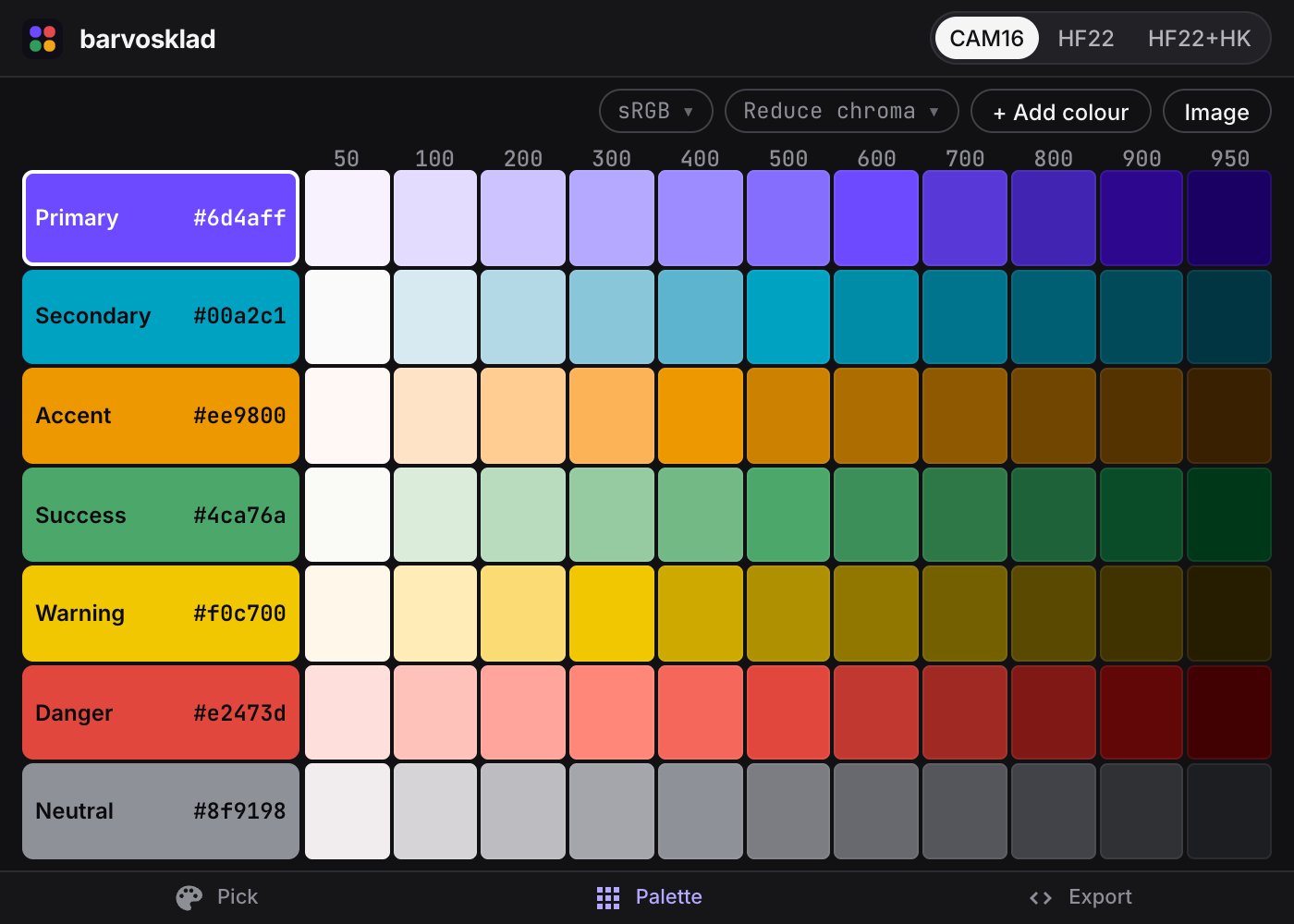
The examples here use seven colours, named Primary, Secondary, Accent, Success, Warning, Danger and Neutral for their jobs in the interface. Those names stay with the palette through editing and export. There’s room for up to sixteen colours when a product needs more. Open this seven-colour palette.
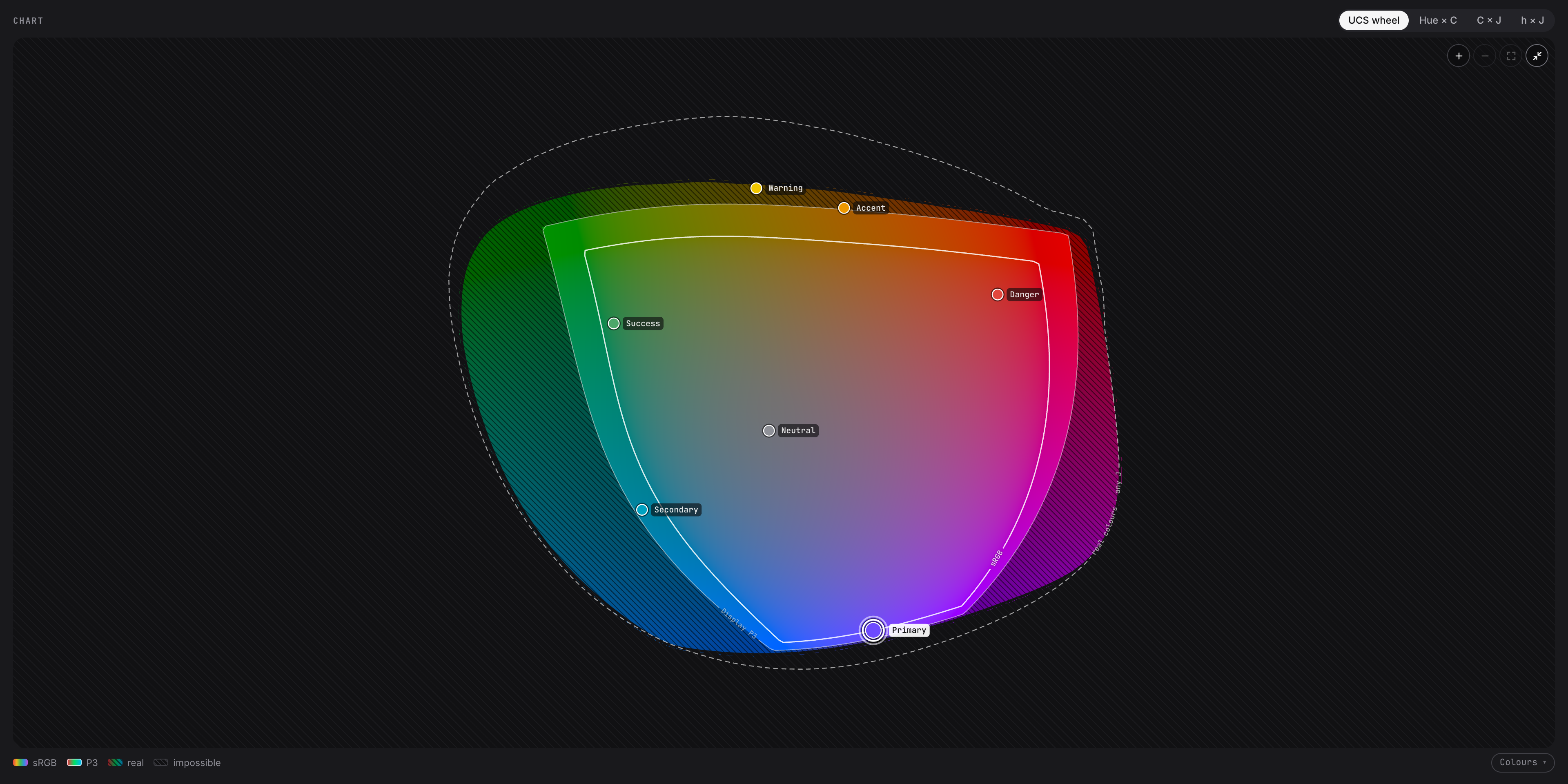
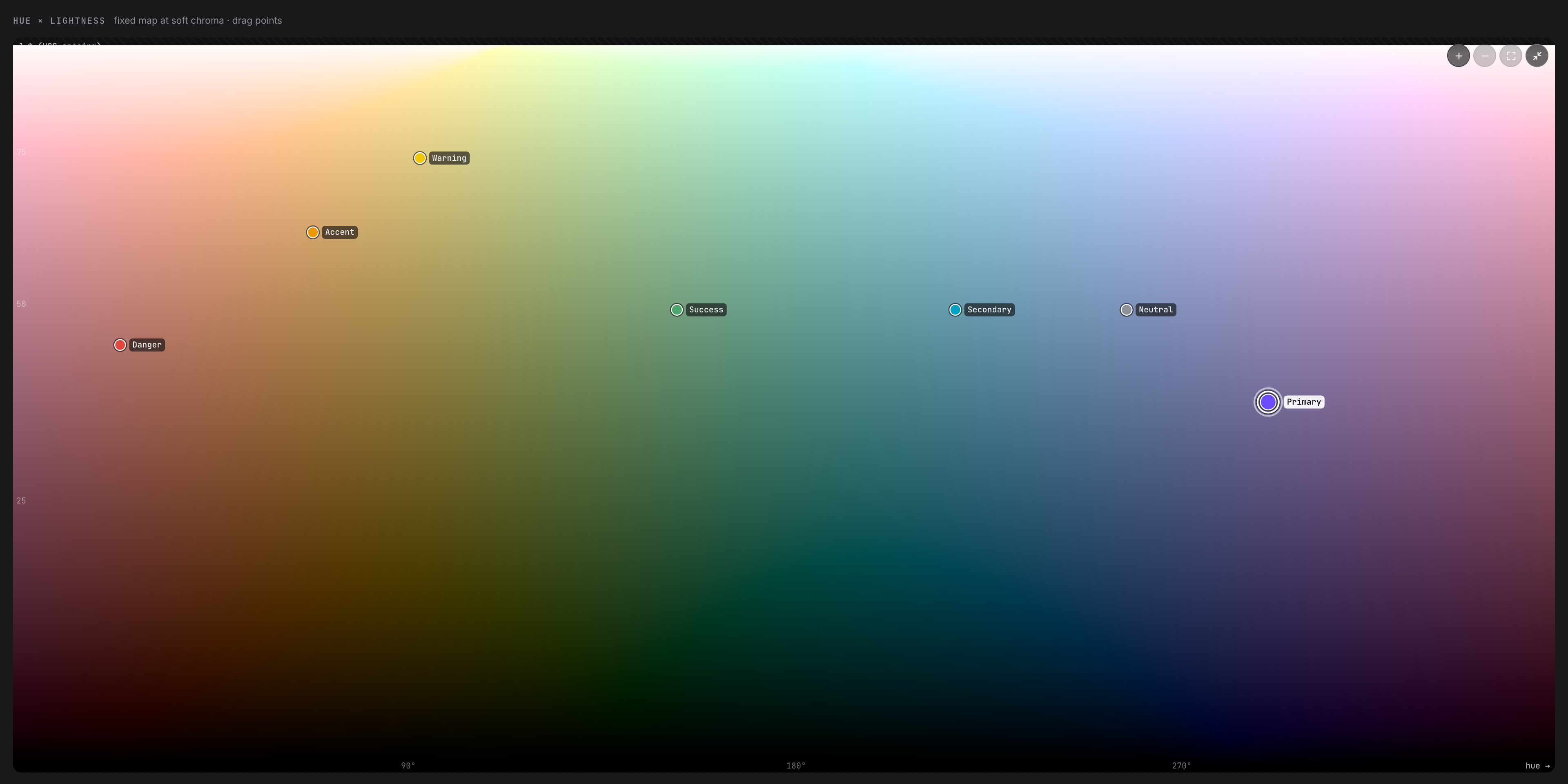
The wheel shows how the hues and colourfulness relate, while the hue and lightness chart makes differences in lightness easier to follow. Moving between the views helps us see why a colour feels out of place and decide what to adjust.
Working within the screen’s limits
Some vivid colours fall outside the range a screen can reproduce. Barvosklad shows the boundaries for standard sRGB and wider-gamut Display P3 screens directly on the charts. The 3D view makes it easier to see how that range changes as a colour gets lighter or darker.
There’s a choice when a colour goes beyond that boundary. We can reduce its intensity and keep its lightness, or let both change to find a closer match. Both approaches keep the hue. Showing the result lets us decide which compromise suits the palette.
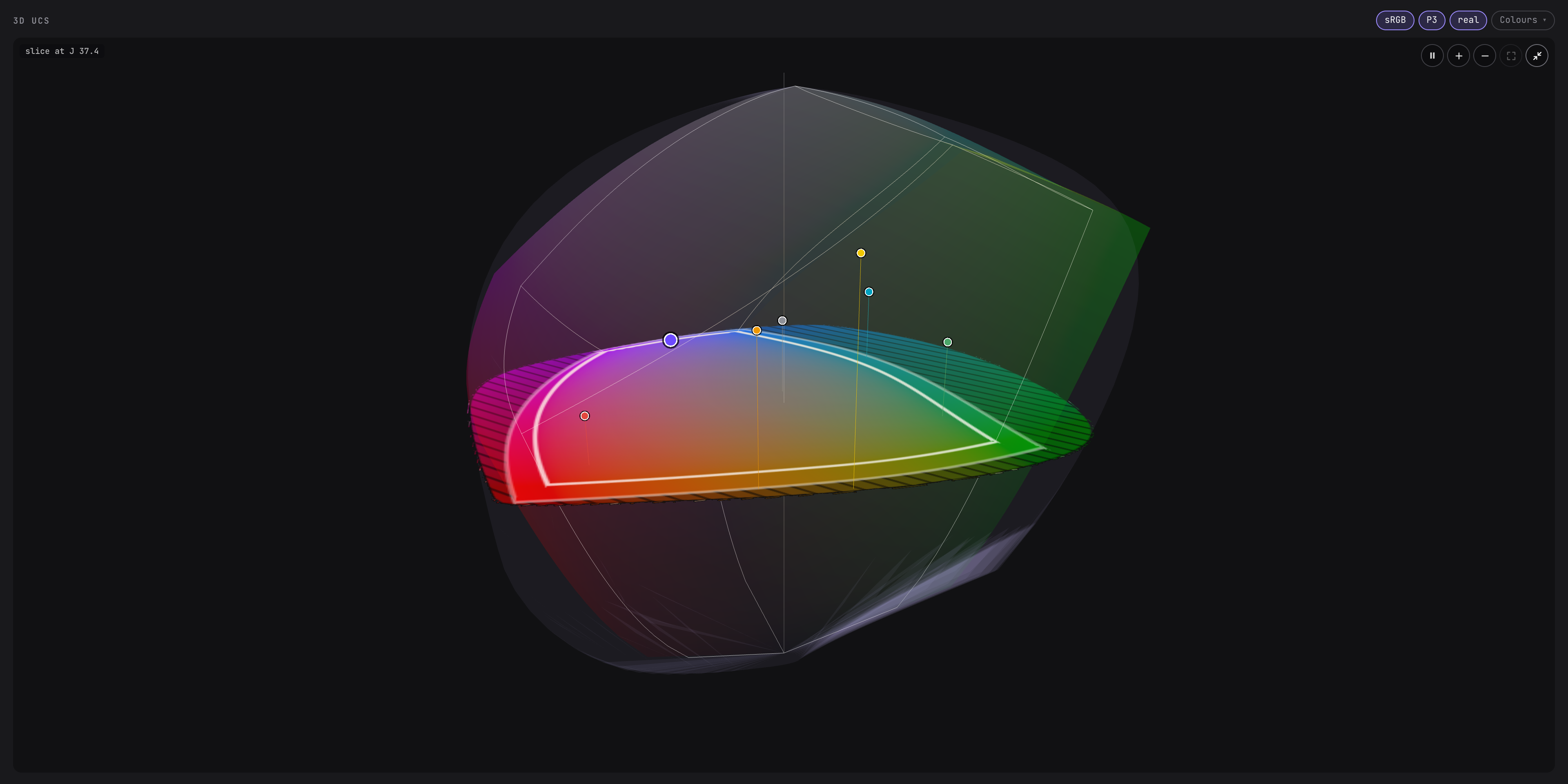
Each colour expands into eleven shades, from 50 to 950. We space them along a path through the perceptual colour space, keeping the hue and aiming for steadier steps from light to dark. The base colour stays in the scale after any adjustment for the screen. We can use the lighter shades for surfaces and the darker ones for text and borders, then check the whole set together.
How does it look in use?
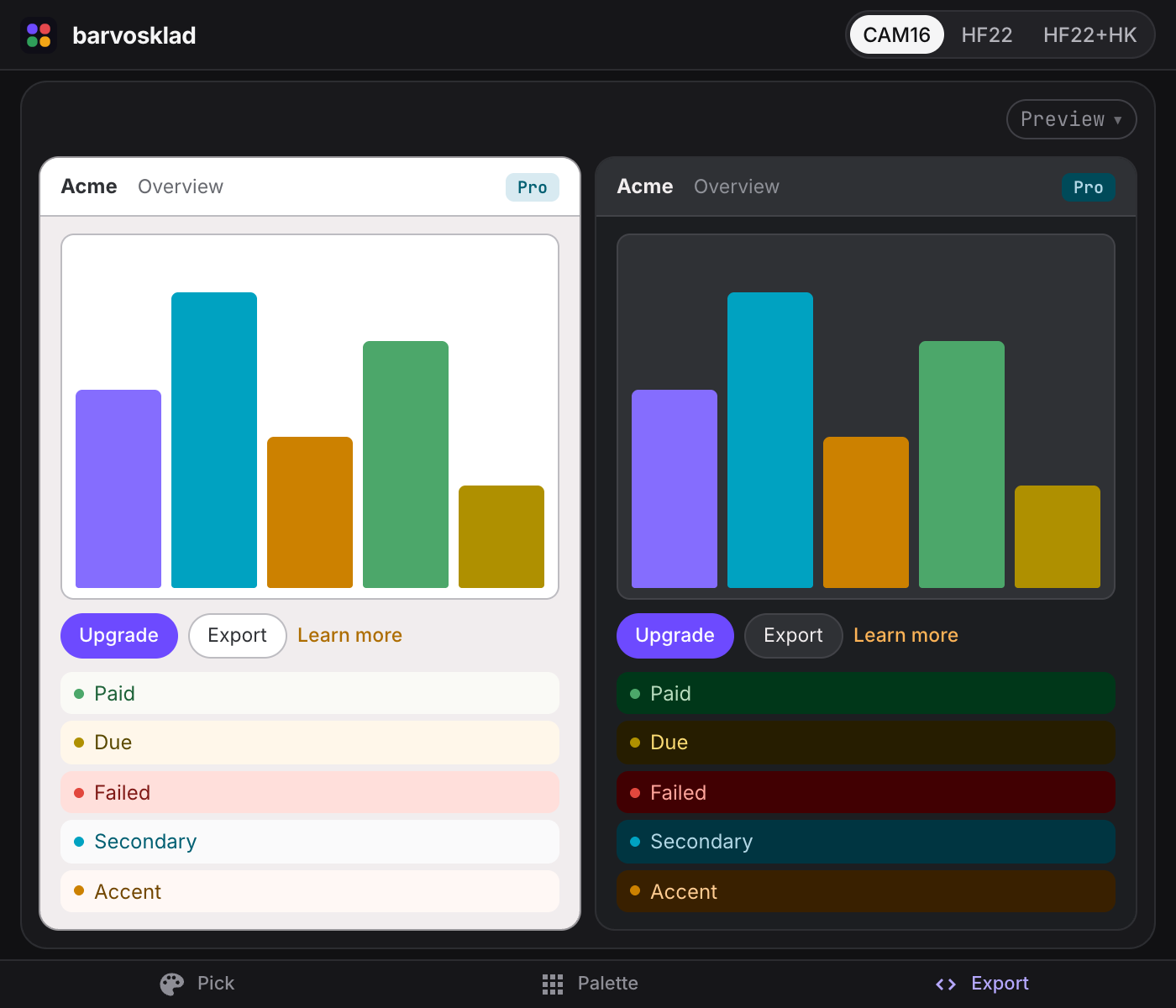
A colour takes on a different weight when it fills a button or a chart. We added light and dark interface previews so we can see that before using the palette in a product. We can also apply it to Barvosklad itself and use the tool with the colours we’re choosing.
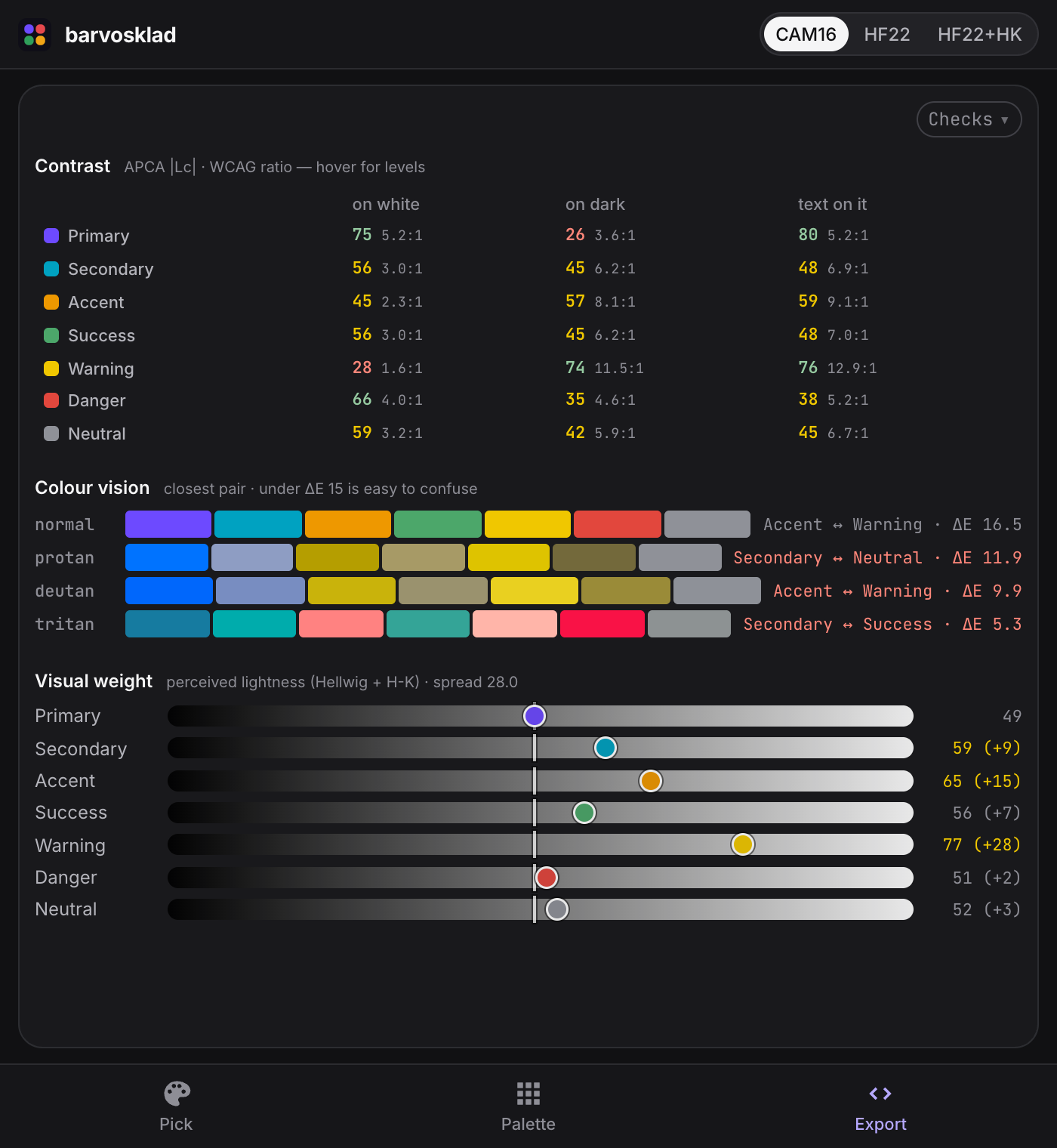
The checks help us spot problems that a preview alone can miss. They show text contrast and simulate differences in colour vision, calling out colours that become hard to tell apart. In this example, the warning yellow needs care on white, and the blue and green become very similar in the tritan preview. Those are useful things to know before assigning colours to important information.
Keeping the palette through to the build
Once we’re happy with the palette, we can export its names and values straight into the project. That includes CSS variables, Tailwind configuration and other common formats, plus a prompt for an AI coding tool. We can take just the base colours or the full set of shades.
Sharing a link opens the same palette and colour settings for a teammate, without an account. They can try an adjustment and send it back, or download an image for discussion. The palette remains editable right up to the point where we use it in the product.